
Each person who uses your BEVIDA can have their own profile. A profile keeps that person's pouring preferences, pour limits and insights. Your own profile is created when you set up the BEVIDA app, and you can add the rest of your household at any time.
Before you start
- You're signed in to the BEVIDA app on the account that owns the BEVIDA.
For now, you manage everyone's profiles from your own app; the people you add as profiles don't need the app. - You know each person's name and age. The app needs both.
- Anyone who wants their preferences, limits and insights to work needs to set up face recognition on your BEVIDA. You can do that straight after you add them.
Where to add a profile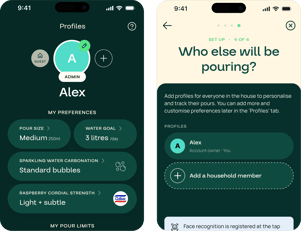
There are two ways to add household members in the BEVIDA app:
- Tap the Profiles icon in the bottom menu, then tap the + next to the profile pictures at the top of the screen.
- When setting up your profile and device preferences, when you first download the app — on the 'Who else will be pouring' step, tap Add a household member'
Adding a household member's details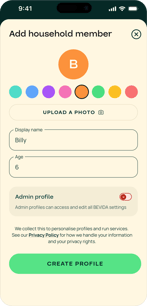
- Choose a colour for the profile, or add a photo instead.
- IF uploading a photo: Choose Photo Gallery or Camera. If your phone asks whether the BEVIDA app can use your camera or photo library, tap Allow. Choose or take a photo and tap Save. To swap it, tap Replace. To go back to a colour, tap Remove photo.
- Enter a Display name. It can be up to 20 characters. Your BEVIDA's screen shows only about the first 10, so a shorter name fits better.
- Enter their Age. Numbers only.
- If this person should be able to use all the settings on your BEVIDA's own screen, turn on Admin profile. Admin profiles can use every setting on your BEVIDA's own screen, and so can the Guest profile. Other profiles cannot turn face recognition off or on, or factory reset the BEVIDA.
- Tap Create profile. The button stays greyed out until you've filled in everything.
If the age you enter is under 18, the app shows a notice about creating a profile for a child. Read it, then tap Continue. You can open the Child Profile & Parental Consent Notice from there.
If you close the screen part way through, the app asks Are you sure you want to exit? Tap No, stay to keep going.
Set up face recognition for the new profile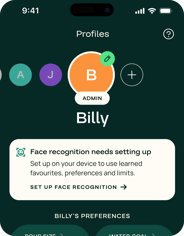
After you create a profile, the app opens it. Until face recognition is set up, a banner says Face recognition needs setting up.
- Tap Set up face recognition in the banner.
- Follow the steps in Set up face recognition.
You can change a profile's preferences and limits straight away, but they only apply once your BEVIDA recognises that person.
Edit or remove a profile
- In the BEVIDA app, tap the Profiles icon in the menu at the bottom, then tap the profile.
- Tap the pencil on the profile picture.
- Change the colour or photo, Display name, Age or Admin profile, then tap Save. A message confirms Profile details have been updated.
To remove a profile, tap Remove profile. The app asks you to confirm. Tap Remove, or Cancel to keep the profile.
Caution: Only remove a profile you're sure about. All details, data, preferences and pour limits for that profile are permanently deleted, and so is their face scan on your BEVIDA.
There's no Remove profile button on your own profile, or when only one profile is left.
What's on a profile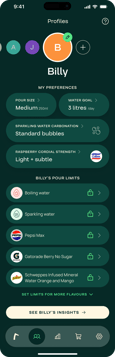
Each profile page has:
- Preferences: pour size, water goal, sparkling water carbonation and cordial strength. See Set profile preferences.
- Pour limits: how much of each flavour or type of water the person can pour. See Set pour limits.
- A button to see that person's insights.
Settings that belong to your BEVIDA, like water temperatures, are the same for everyone. See Change shared settings.