
The BEVIDA app can send notifications straight to your phone, like a reminder that a cartridge is running low or a weekly summary of how you've poured.
You get to choose which ones get sent as push notifications to your phone. All information will still show on the main BEVIDA page in app if not sent as a notification.
Before you start
- You're signed in to the BEVIDA app.
- Push notifications are allowed for the BEVIDA app on your phone. If you allowed them when you first set up the app, every notification type starts switched on.
Turn on push notifications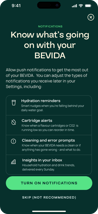
Soon after you have connected your BEVIDA to your app, you will be prompted to turn on notifications.
When you tap Turn on notifications you will be asked to Allow the BEVIDA ap to send you notifications. Tap Allow.
If you don't allow notifications when asked this first time, you will have to turn it on in your phone's notification settings and cannot allow again in-app.
The Types of push notifications in Settings (below) will all be off by default too, because they only work if push notifications are allowed.
Choose your types of notifications
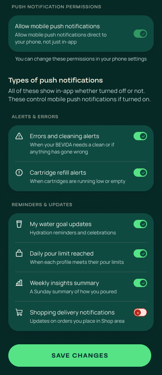
- In the BEVIDA app, tap the Settings icon in the menu at the bottom.
- Under Device, tap Notification preferences.
- Under Types of push notifications, switch each one on or off:
- Errors and cleaning alerts: when your BEVIDA needs a clean, or if anything has gone wrong.
- Cartridge refill alerts: when cartridges are running low or empty.
- My water goal updates: hydration reminders and celebrations for your water goal.
- Daily pour limit reached: when a profile reaches a pour limit.
- Weekly insights summary: a Sunday summary of how you poured. See Tracking what you pour.
- Shopping delivery notifications: updates on orders you place in the Shop area.
- Tap Save changes. The button stays greyed out until you change something.
If you go back without saving, the app asks Are you sure you want to exit? Your changes won't be saved unless you tap Save changes.
Stopping notifications on your phone
To turn off push notifications, you can toggle all types of notifications (above) to 'off'.
Once you've allowed the BEVIDA app to send notifications on your phone, you cannot turn off the top Allow mobile push notifications in app those that off in the app.
You will need to open your phone's notification settings to turn off all notifications permissions.
Notifications in the app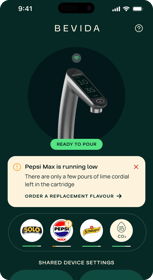
The app always shows alerts and messages on its BEVIDA home screen, whether you've switched push notifications on or off.
They will show under the device status, and may have a Show more button if there are more than one.